
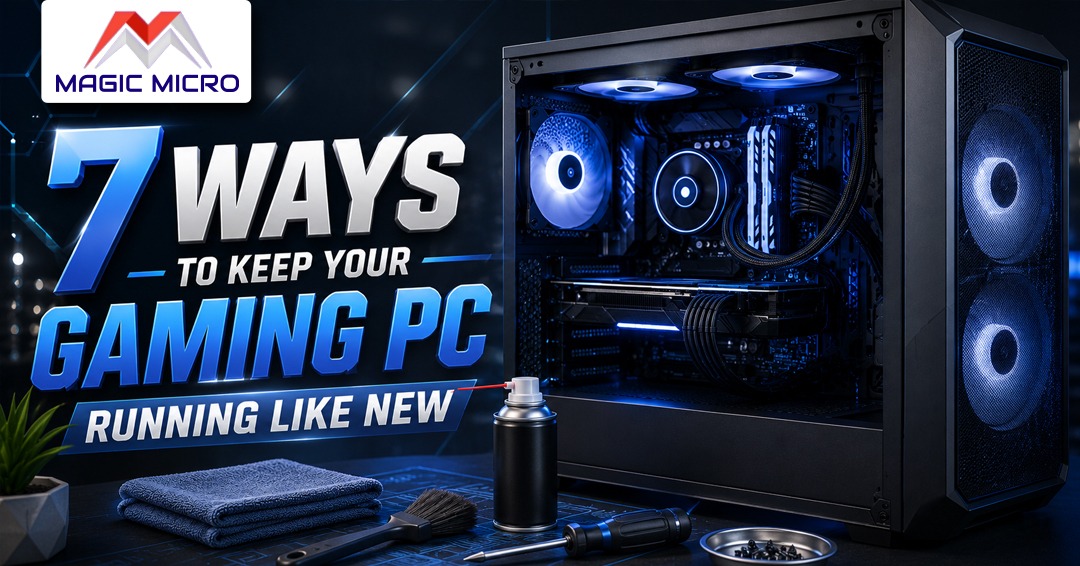
Let’s be real for a second. You didn’t drop a couple grand on a high-end rig just to watch it turn into a sluggish, overheating mess two years later. But that’s exactly what happens if you ignore the basics.
Dust, heat, and digital junk don’t care how much you spent. They’ll choke out performance and cook your precious hardware if you let them. The good news? A little regular love goes a seriously long way.
Checklist To Keep Custom Gaming PCs and Workstations Performing at Its Best:
1. Show No Mercy to Dust Bunnies
Grab a can of compressed air (and maybe do this in the garage). Open the side panel and blast away all that visible gunk. Hold your fan blades still so they don’t spin like crazy and burn out their bearings. Target your GPU, your CPU cooler, and every single heatsink in sight. Do this every few months, or way more often if you have pets or carpet. Trust me, dust is an insulator that turns your cooling into a joke.
2. Untangle That Rat’s Nest
Open your back panel. See that tangled mess of wires? That’s not just ugly—it’s blocking your airflow. Grab some zip ties and run all those cables through the back channels. Clean routing helps cool air reach your parts without fighting through a jungle. It also makes future upgrades way less of a headache.
3. Declutter Your Digital Drive
Head to Settings > System > Storage and turn on Storage Sense. Let it auto-delete those temporary files. While you’re at it, uninstall games you haven’t touched in months and run Disk Cleanup as an admin to purge old Windows update junk.
4. Update Your Drivers (Seriously, Do It)
Don’t wait for a game to crash. Open GeForce Experience or AMD Adrenalin and grab the latest Game Ready drivers. Also, swing by your motherboard manufacturer’s site to snag the latest Chipset and BIOS updates. New drivers fix bugs and often give you free performance boosts.
5. Keep an Eye on Your Temps
You can’t fix a problem you don’t see. Download a free tool like HWMonitor or MSI Afterburner. Run it in the background while you game. If your CPU or GPU is constantly hanging around 90°C, you have a cooling issue that needs fixing now.
6. Refresh the Thermal Paste
Thermal paste – the compound between your CPU and its cooler – dries out and loses effectiveness over time. Most manufacturers recommend replacing it every 2–3 years. The difference is real: a dried-out application can add 10–15°C to your CPU temps. Cleaning off the old compound with isopropyl alcohol and applying a fresh pea-sized drop is a 15-minute job that can genuinely breathe new life into an aging system.
7. Give Your Power Supply Some Care
Don’t forget the PSU. Most modern cases have a bottom dust filter. Pull that out and wash it with soapy water (let it dry completely before putting it back). A choked PSU gets hot, loses efficiency, and can take your whole system down.
Keep Your Machine Running Like New
Look, you wouldn’t skip oil changes on a sports car. Don’t skip maintenance on your dream PC. At Magic Micro, we build every rig with clean cable routing and top-tier airflow, because we know a clean PC is a fast PC. But even the best build needs an owner who pays attention.
If that checklist felt like a lot, or if you just want a system you don’t have to tinker with, we’re here for you. As a top custom PC building company, we can build you a beast that’s easy to maintain, or walk you through a deep clean if you get stuck.
Stop letting dust win. Contact Magic Micro today, and let’s make sure your investment keeps paying off.
Frequently Asked Questions (FAQs):
1. Why is regular gaming PC maintenance important?
Regular maintenance helps prevent overheating, improves performance, extends hardware lifespan, and keeps your gaming PC running efficiently.
2. How often should I clean the inside of my gaming PC?
Most gaming PCs should be cleaned every 3–6 months. If you have pets, smoke indoors, or live in a dusty environment, more frequent cleaning is recommended.
3. What is the safest way to remove dust from a PC?
Use compressed air to blow dust from fans, heatsinks, filters, and other components. Always power down and unplug the PC before cleaning.
4. Can dust affect gaming performance?
Yes. Dust buildup restricts airflow, increases temperatures, and can cause thermal throttling, which reduces gaming performance.
5. Why is cable management important for a gaming PC?
Proper cable management improves airflow, reduces clutter, makes upgrades easier, and helps maintain lower system temperatures.
6. How do I know if my PC is overheating?
Common signs include loud fan noise, sudden shutdowns, reduced performance, system instability, and consistently high CPU or GPU temperatures.
7. What temperature is too high for a gaming PC?
While temperatures vary by component, sustained temperatures above 85–90°C for CPUs or GPUs may indicate a cooling issue that should be addressed.
8. What happens if thermal paste dries out?
Dried thermal paste becomes less effective at transferring heat, causing higher CPU temperatures and potentially reducing performance.
9. Can deleting temporary files improve PC performance?
Removing temporary files, unused programs, and unnecessary data can free up storage space and improve overall system responsiveness.
10. How can Magic Micro help maintain gaming PC performance?
Magic Micro builds custom gaming PCs and workstations with optimized airflow, quality components, and expert cable management while providing guidance on proper system maintenance and upgrades.